The creation of a remote podcast may seem very complicated at first glance, but it’s not as hard as it may seem.
After reading this article, you will understand the process of recording a remote podcast and know everything you need to record your podcast. So let’s get started!
Organisational aspects
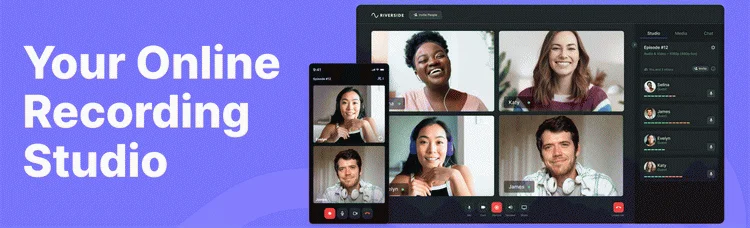
First, you need to choose a program for video recording. At Vortex.video, we recommend Riverside. fm because of the following advantages:
Studio quality audio.
4K video (depending on webcam capabilities).
Reliable connection (progressive upload and local recording).
Screen sharing.
Social live streaming.
iOS app.
There are also alternatives, such as Zencastr, SquadCast, and Cleanfeed, but they are not at the level of Riverside. In previous years, people also used Zoom to record video, but it greatly reduces video and audio quality, so it is not relevant now.
Please note that all further recommendations in this article imply that you use Riverside for recording.
Choose Your Setup
Selecting the right equipment for video podcasting is vital as it enhances production value, and improves visuals, audio quality, and lighting, leading to engaging content and a professional presence. Our article will help you to understand the choice of equipment, so let’s get started!
Microphone
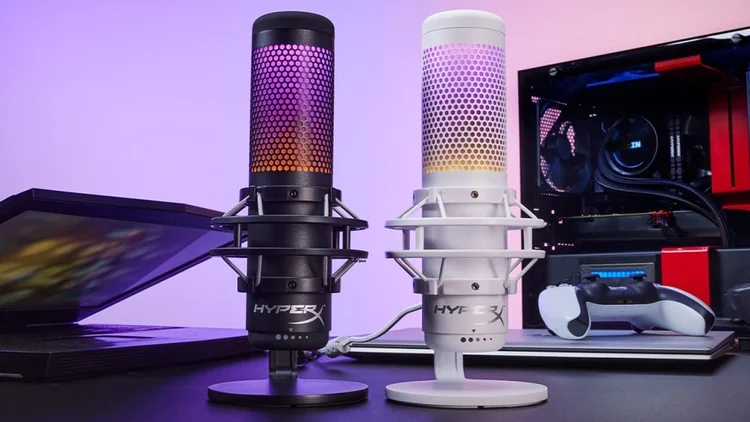
Sound quality is extremely important when recording a video podcast, so choosing the right microphone is crucial. A high-quality microphone ensures clear audio, accurate tone, and reduced background noise, which enhances audience engagement.
However, selecting the right microphone, considering the varied options available can be difficult. Spend some time choosing the right microphone.
We don’t recommend buying the first one you see, and don’t buy the cheapest models, as the sound quality may be terrible. We’ve covered the issue of choosing a microphone in our blog before, so you can read the article below if you are interested. [in progress]
Camera
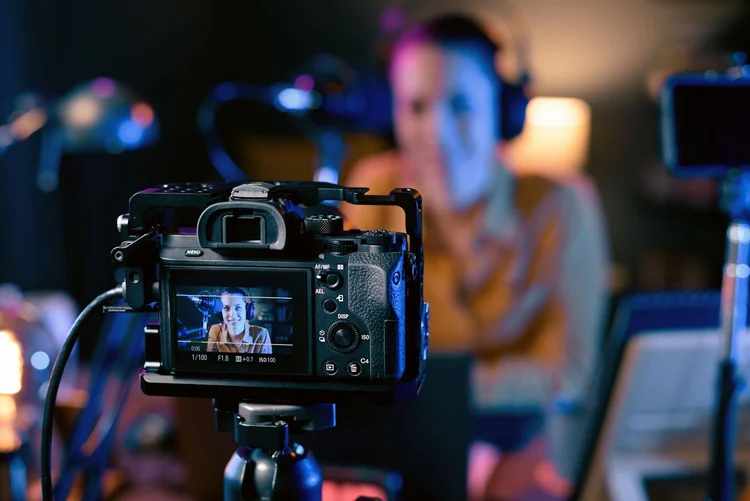
The camera you choose can greatly impact your video podcast’s quality. A good camera captures crisp visuals and adjusts well to different lighting conditions, enhancing viewer engagement. If you’re unsure about which camera to select, given the various options with diverse features and price points, don’t worry It’s not as difficult as it seems. Before purchasing a camera, you can check our article to ensure your investment meets your needs and vision for your podcast’s future.
Important – if you are a MacBook Pro or MacBook Air user, do not use it to record your podcast. Macbook cameras have a low resolution, because the screen is very thin, and a high-quality camera could not be built into it.
Important – if you are a MacBook Pro or MacBook Air user, do not use it to record your podcast. Macbook cameras have a low resolution, because the screen is very thin, and a high-quality camera could not be built into it.
Light
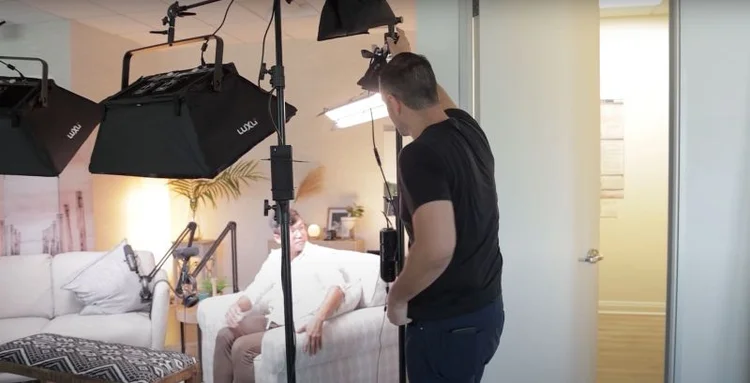
Good lighting is essential for video podcast quality. It ensures clear visibility and accurate colour representation, contributing to a professional appearance. Poor lighting can lead to grainy images or distracting shadows, which detract from your podcast’s quality. The topic of video lighting is too large to describe in one article, so we found a video that will help you understand this aspect.
From window light tricks to professional studio gear, this video features various options to suit all needs and pockets. Dive in, compare products, and choose the right key light for your next masterpiece. Watch now and light up your world!
Headphones
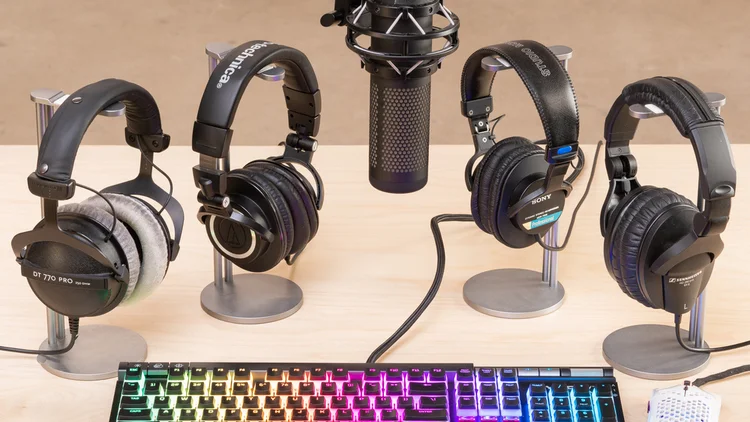
From a practical point of view, headphones in podcasts are used only to prevent your microphone from recording the sound of your guest. So you can use absolutely any headphones you wish.
But podcasters also note that headphones in the frame make the speaker look more professional and expert, so you can choose headphones that look more professional to take advantage of this feature.
Preparing recording location
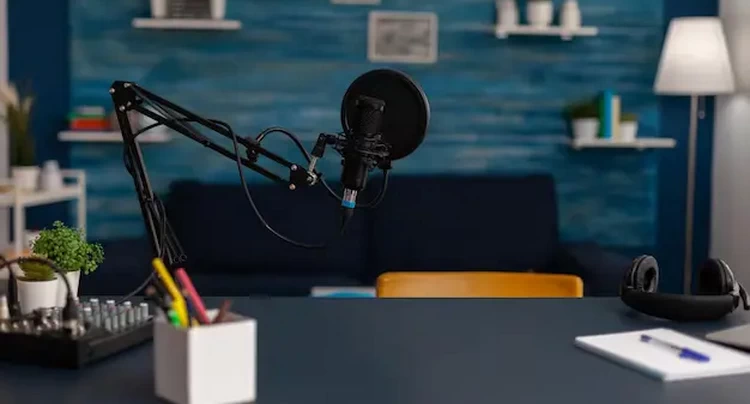
Before hitting the record button, make sure you prepare the recording area in the right way. The environment you choose for your recording can significantly affect your podcast’s sound and video quality. Choose a quiet, well-lit room with minimal background noise and echo.
Furnished rooms with carpets, curtains, or bookshelves can help reduce echo and ambient noise. The background of your video podcast also matters. Ensure your background is clean, organized, and visually appealing, but not too busy. This can help your audience focus on you and your emotions.
Instruct Your Guest
First, you should send a link to your studio to the guest. Using this link, the guest will be able to download Riverside to his/her phone or log in to your studio using a browser.
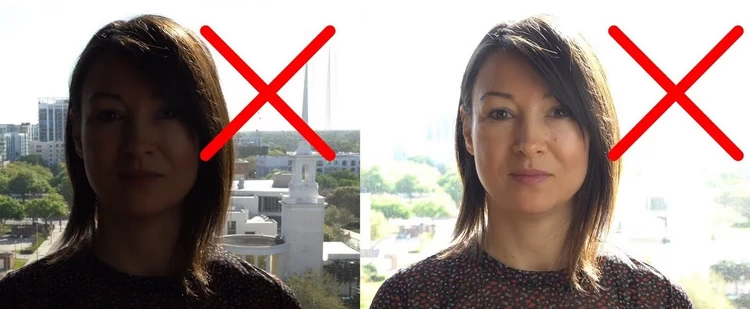
Next, you should ask your guest to choose a quiet place with good lighting. Ask him/her to turn off fans and air conditioners, and silence the phone. Also, the guest should not have a window in the background, as this can spoil the picture.
If your guest doesn’t have a professional camera and microphone, advise them to use a smartphone. We do not recommend using a laptop camera to record a podcast. And you definitely shouldn’t record a podcast on a MacBook, because their lid is very thin, and a high-quality camera could not be built into it. Even the latest top-of-the-line laptops have cameras that are much worse than smartphone cameras, so pay attention to this.
Also, explain to the guest that your position in the frame should be the same. The easiest way to set up a smartphone for shooting is to use books.
Recording process
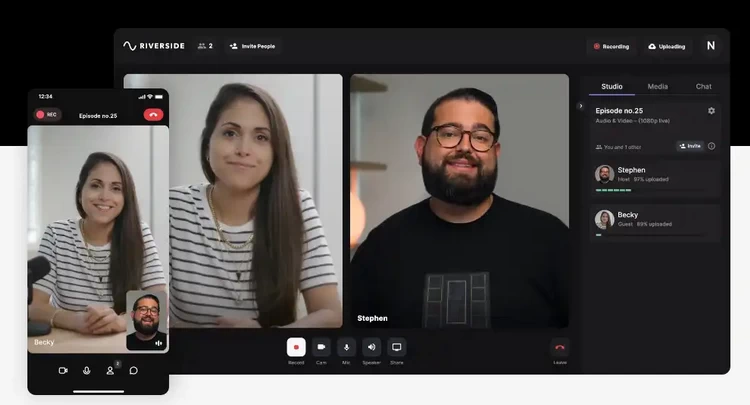
Before starting the main recording, make sure to conduct a technical check. Record a short clip before starting the main podcast to ensure everything works perfectly.
Review it for any potential issues with sound, video quality, or synchronization between audio and video. If possible, sending a test video to your video editor is better because no one can check it for you better than the video editor.
Once you’ve made sure that all your equipment is working properly and your recording location is well-prepared, you’re ready to start your remote video podcast.
Instruction on how to record a podcast on Riverside
Open Riverside Dashboard and create a new studio.
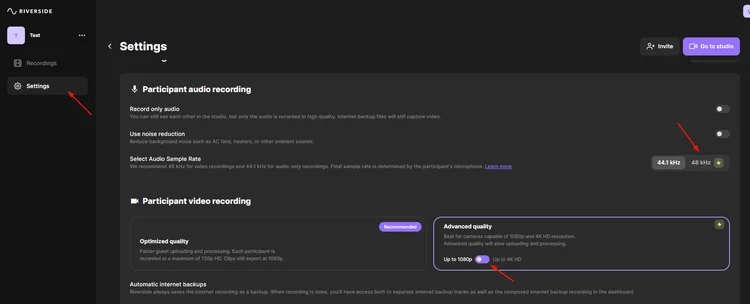
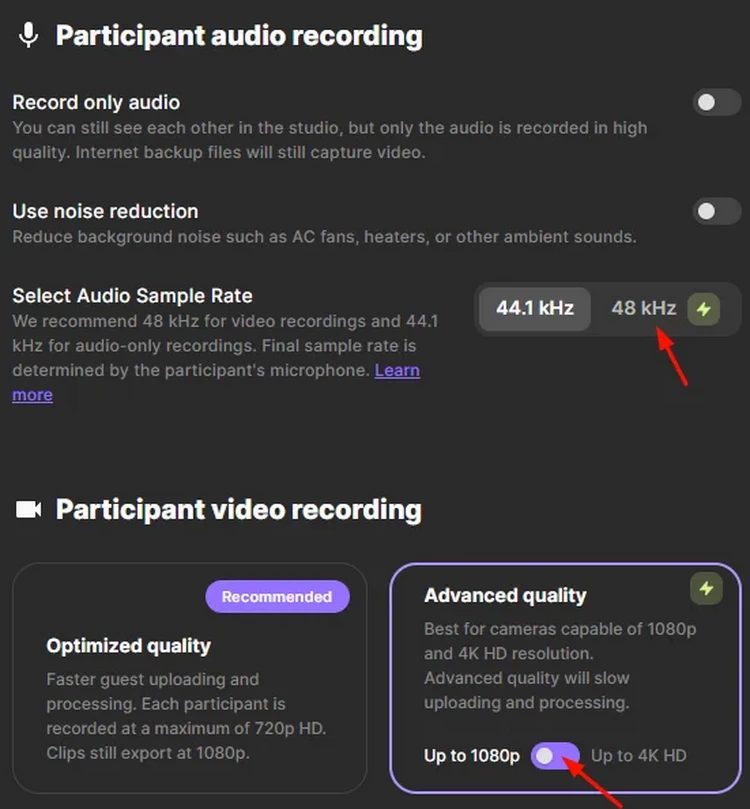
Set the video settings to 1080 or 4k and switch the sound settings to 48 kHz.
Send your guests an invite link to join your recording studio.
Hit the Record button to start recording.
Stop recording when you are done and wait for all your guests’ files to upload.
Download separate audio and video tracks for each guest.
If you still have questions about the podcast recording process, you can watch the video below:
Conclusion
Choosing the right camera for recording a solo video podcast comes down to your specific needs and budget constraints.Using the above information, you will be able to record high-quality remote video podcast footage easily, but recording a podcast is only one step in its creation.The next step in creating a podcast is video editing and post-production. At this stage, your podcast gets polished. High-quality post-production service can help your podcast stand out from the crowd, find its target audience, and become successful!If you want to learn more about post-production and video editing, you can book a free strategy call with Vortex.video and get a free consultation for your podcast!Get a Free Consultation